Használati útmutató TP-Link Festa F65-Outdoor
TP-Link
hozzáférési pont
Festa F65-Outdoor
Olvassa el alább 📖 a magyar nyelvű használati útmutatót TP-Link Festa F65-Outdoor (2 oldal) a hozzáférési pont kategóriában. Ezt az útmutatót 24 ember találta hasznosnak és 12.5 felhasználó értékelte átlagosan 5.0 csillagra
Oldal 1/2
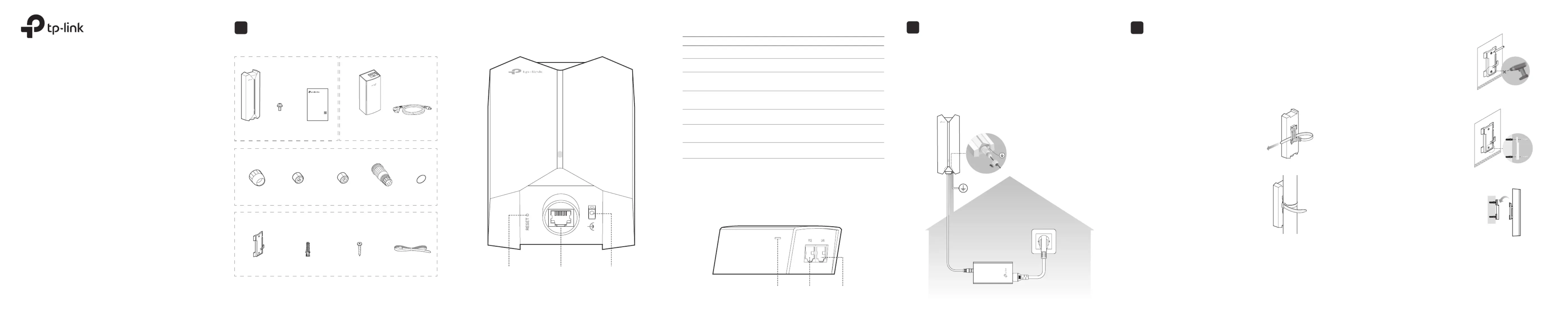
Overview
Package Contents
Panel Layout
Passive PoE Adapter
LED Status
Indication
Solid green
The device is initializing or working properly.
Flashing yellow
System errors. RAM, Flash, Ethernet, WLAN or
rmware may be malfunctioning.
Slowly Flashing yellow, green
Firmware update is in progress. Do not disconnect
or power o the device.
Quickly ashing yellow, green
The device is being reset to its factory default
settings.
Flashes green twice
Initialization is completed.
SYS LED Explanation
Quickly ashing green
Locate the device.
Slowly ashing green
The device is in an isolated state.
1
RESET Grounding
Terminal
Ethernet
Port
Power LED PoE Port LAN Port
Waterproof Kit
Seal
(For Unshielded Cable)
O-Ring
Bracket
Seal
(For Shielded Cable)
Spiral Cover
Power Cord
Passive PoE Adapter
(Mounting Bracket Included)
Screw
(For Grounding
Wire Securing)
AP Installation Guide
Quick Installation Guide
Setup with videos
Visit https://www.tp-link.com/support/setup-video/ or scan the QR
code to search for the setup video of your product model.
Indoor/Outdoor Access Point
Plastic Wall Anchors Self-tapping ScrewsMounting Bracket
(For AP)
Pole Mounting Strap
Mounting Kit
* Accessories may vary by product.
Note: PoE Adapter may vary by model.
Lightning and ESD Protection
Before mounting the AP, consider Lightning and ESD Protection to ensure
safety.
Proper grounding is extremely important for outdoor devices. To reduce the
damage of potential lightning and ESD attacks, connect the grounding
terminal to grounding facilities using a proper grounding wire, which should
meet the local installation requirements. You need to secure the grounding
wire to the grounding terminal with the screw.
Hardware Installation
Mount the AP
The AP can be pole-mounted or wall-mounted. Follow the steps below
for the appropriate installation.
Option 1: Pole Mounting
Lead the end of the pole mounting strap
through the back of the AP.
Step 1:
Position the AP and wrap the pole
mounting strap around the pole.
Feed the end through the screw-block
and tighten the strap until the AP is
secure.
Step 2:
Option 2: Wall Mounting
Step 1:
Place the mounting bracket for AP in
the right position. Mark positions for
the screw holes .
Drill holes for the screws at the marked
positions.
Step 2:
Insert the plastic wall anchors into the
holes.
Align the mounting bracket to the
plastic wall anchors and drive the
self-tapping screws into the anchors
through the mounting bracket.
Step 3:
Align the mounting tabs on the back of
the AP with the slot of the mounting
bracket.
Push and slide the AP downward until
it locks into place.
3
2
Φ 7.6 mm (19/64 in)
AP
Grounded PoE Adapter
Ethernet Cable
Grounded 3-wire
Power Outlet
Indoor/Outdoor Access Point
Note: Festa F65-Outdoor is used as an example throughout the Guide. Images
may dier from your actual product.
©2024 TP-Link 7106511118 REV1.0.0
Quick Installation Guide
Termékspecifikációk
| Márka: | TP-Link |
| Kategória: | hozzáférési pont |
| Modell: | Festa F65-Outdoor |
Szüksége van segítségre?
Ha segítségre van szüksége TP-Link Festa F65-Outdoor, tegyen fel kérdést alább, és más felhasználók válaszolnak Önnek
Útmutatók hozzáférési pont TP-Link

31 December 2025

12 December 2024

9 December 2024

4 Október 2024

2 Október 2024

11 Szeptember 2024

11 Szeptember 2024

11 Szeptember 2024

31 Augusztus 2024

30 Augusztus 2024
Útmutatók hozzáférési pont
- hozzáférési pont LigoWave
- hozzáférési pont Netis
- hozzáférési pont Grandstream
- hozzáférési pont CradlePoint
- hozzáférési pont Advantech
- hozzáférési pont Crestron
- hozzáférési pont Draytek
- hozzáférési pont Mojo
- hozzáférési pont Linksys
- hozzáférési pont Homematic IP
- hozzáférési pont Huawei
- hozzáférési pont EQ-3
- hozzáférési pont Allnet
- hozzáférési pont Dell
- hozzáférési pont Kingston
Legújabb útmutatók hozzáférési pont

9 Április 2025

9 Április 2025

6 Április 2025

20 Március 2025

16 Március 2025

15 Január 2025

14 Január 2025

14 Január 2025

14 Január 2025

13 Január 2025